
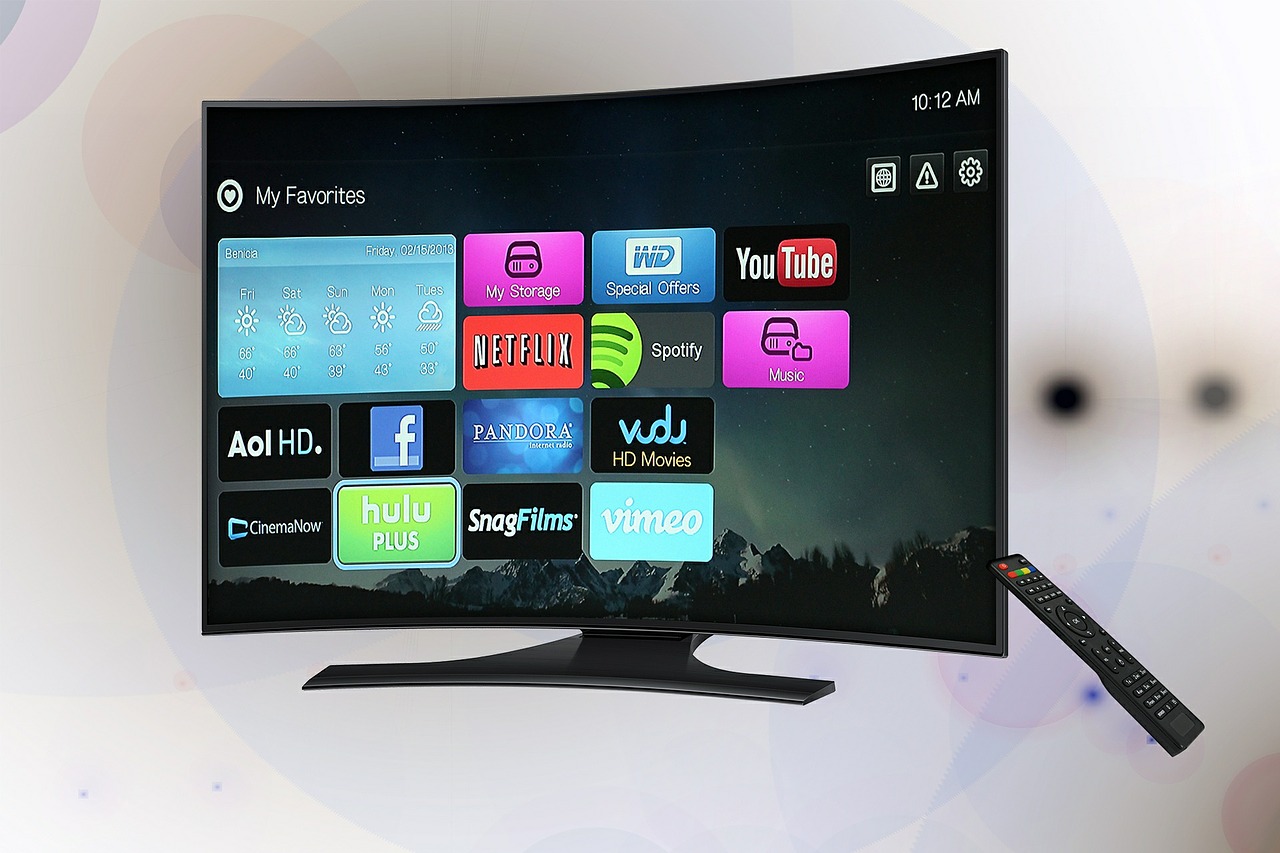
If you’ve just bought a new Android TV or Android TV box, you’ll need to complete the initial setup before you can start streaming apps like YouTube, Netflix, or Prime Video. Don’t worry setting up Android TV is simple and can be done in multiple ways.
In this guide, you’ll learn how to setup Android TV step by step, including how to use androidtv.com/setup, your mobile phone, or the TV remote.
What Is Android TV Setup?
Android TV setup is the process of connecting your TV to the internet, signing in with your Google account, pairing the remote, and syncing apps. Without completing the setup, your Android TV will not function properly.
Google provides an official setup method via androidtv.com/setup, which makes the process faster and easier.
Requirements Before You Set Up My Android TV
Before you begin, make sure you have:
- A stable Wi-Fi or Ethernet connection
- A Google account
- Android TV remote (with batteries)
- Smartphone or computer (optional, for androidtv.com/setup)
Method 1: How to Setup Android TV Using androidtv.com/setup (Recommended)
This is the fastest and easiest way to set up your Android TV.
Steps to Visit androidtv.com/setup
- Turn on your Android TV
- Select your language on the TV screen
- A setup code will appear on your TV
- On your phone or computer, visit androidtv.com/setup
- Sign in with your Google account
- Enter the code shown on your TV
- Follow on-screen instructions to complete setup
✅ This method automatically syncs your Google account, apps, and preferences.
Method 2: Android TV Set Up Using Your Android Phone
If you have an Android phone, you can quickly set up my device Android TV using Google’s built-in pairing feature.
Steps:
- Turn on Android TV
- Enable Bluetooth on your Android phone
- Sign in to the same Google account on both devices
- Follow the on-screen instructions
- Your phone will automatically transfer Wi-Fi and account details
This method works best for users already logged into Google services.
Method 3: How to Set Up My Android TV Using Remote Only
If you don’t want to use a phone or browser, you can complete the Android TV setup manually.
Steps:
- Turn on your Android TV
- Pair the remote (press Back + Home buttons together)
- Choose Wi-Fi network
- Enter Wi-Fi password
- Sign in to your Google account using the remote
- Accept Google terms and services
This method takes slightly longer but works on all Android TVs.
Pairing Android TV Remote During Setup
If your remote doesn’t connect automatically:
- Bring the remote close to the TV
- Press and hold Back + Home for 5 seconds
- Wait for confirmation message on screen
Once paired, continue with the Android TV setup process.
Common Problems During Android TV Setup (Quick Fixes)
- androidtv.com/setup not working
→ Check internet connection and re-enter the code - Remote not pairing
→ Replace batteries and retry pairing - Google account sign-in failed
→ Verify email/password or try another setup method
Final Thoughts: Best Way to Set Up Android TV
If you want the smoothest experience, always use androidtv.com setup. It’s faster, more reliable, and automatically syncs your Google account.
No matter which method you choose, once the setup is complete, your Android TV is ready for apps, streaming, and smart features.


